
Payments
Payment Overview
Record renter payments, reduce rental balances, update revenue and collection metrics, and keep payment history tied to the Rental Ledger.
Overview
Payments represent money received from renters. Recording payments lets PropioLedger reduce outstanding balances, update Open Balance and Past Due Amount, calculate revenue, update dashboard metrics, update reports, and support invoice tracking.
Every payment is recorded against a rental and becomes part of the Rental Ledger. The saved payment is the posted-payment record; the ledger determines how that payment applies to unpaid charges.
Recording A Payment
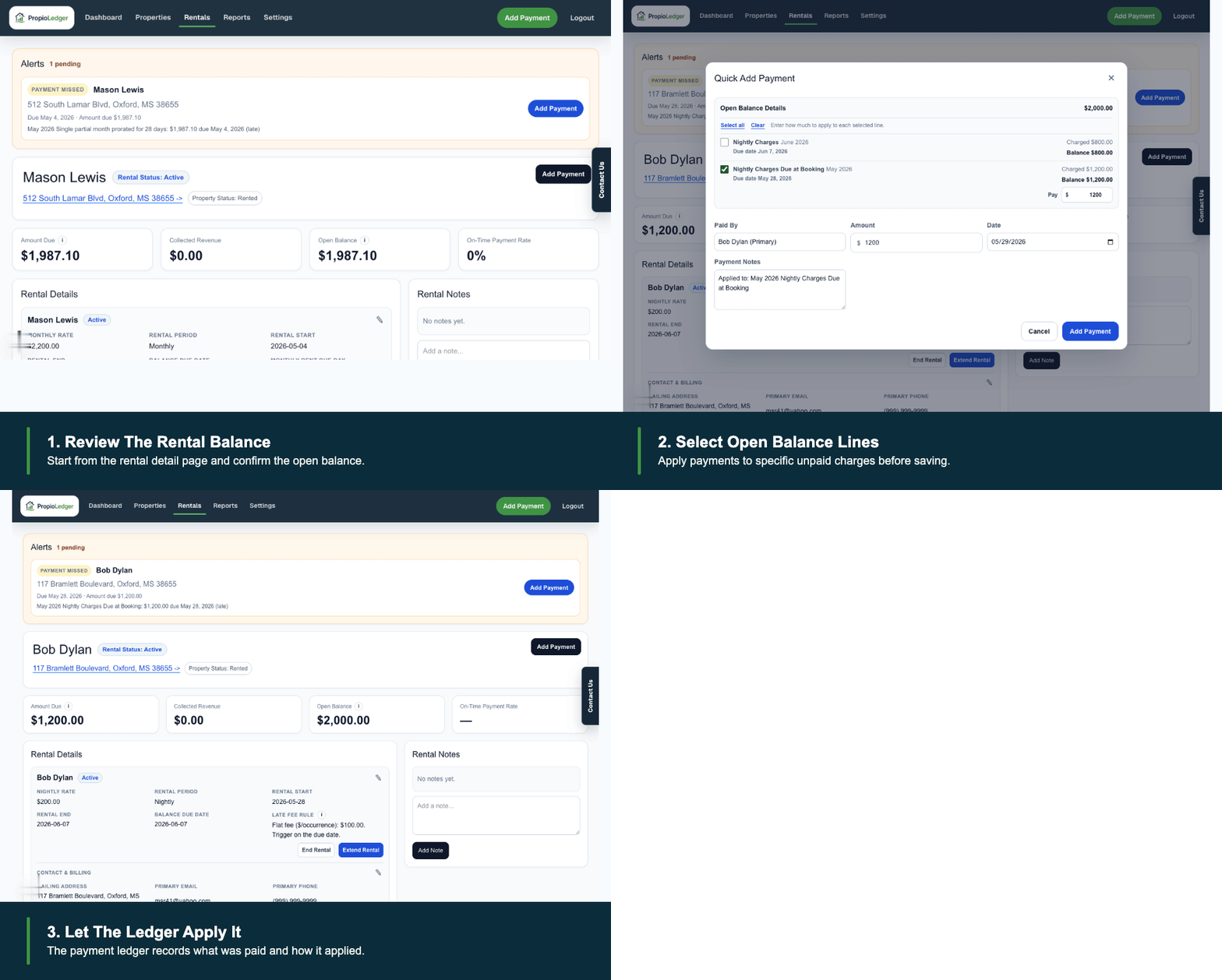
The most common path is to open the Rental Detail page, choose Add Payment, enter or confirm the payment details, and save the payment.
You can also start from the global Add Payment button when you know the property, rental, and renter. Payments should be recorded against the rental they belong to so balances and reporting stay accurate.
- Open the rental that received the payment.
- Choose Add Payment.
- Select any open balance lines you want to use as a payment helper.
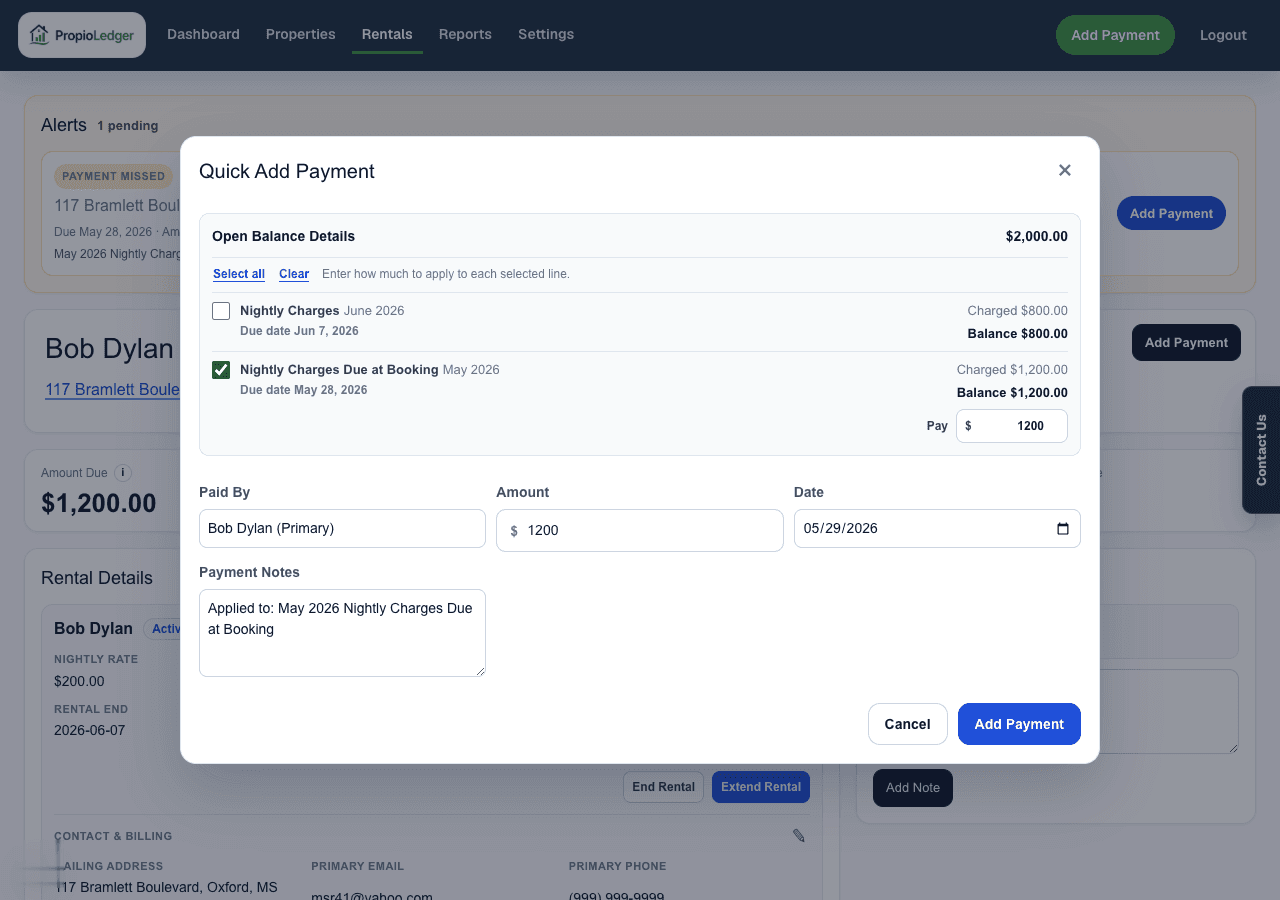
- Confirm the payer, amount, date, type, and notes.
- Save the payment.
- Review the Rental Ledger and Payment Ledger after saving.
Payment Information
Payments may include amount, payment date, payment type, payer, and notes. Each payment is associated with a property, rental, and renter.
Use notes to preserve context, such as what the renter intended the payment to cover or how the payment was received.
After a payment is posted, correct clerical mistakes by voiding the original payment and adding a corrected payment. Voided payments remain visible in the Payment Ledger for audit history, but they no longer reduce balances or reports.
How Payments Affect Balances
When a balance-applying payment is recorded, PropioLedger applies the net payment amount to outstanding ledger charges according to the allocation rules. As charges are paid down, Open Balance and Past Due Amount update automatically.
Payments can also affect dashboard metrics, rental detail totals, reports, and invoice tracking. The exact reporting impact depends on the payment type and whether any refund has been recorded.
Revenue Versus Collections
Not every payment is rental revenue. Rent, Late Fee, Last Month Rent, Application Fee, and Cleaning Fee count as rental revenue in revenue-focused reporting.
Security Deposit, Pet Deposit, Repair Reimbursement, Utility Reimbursement, and Other are collections, but they are not counted as rental revenue. Deposits may still affect balances when they match deposit charges.
Refunds
Refunds are recorded from rental lifecycle workflows, not from a standalone Refund button on the Payment Ledger.
Use End Rental for a started rental, or Cancel Rental for a future booked rental. When refundable payments are available, those workflows show refund amount fields and notes.
Last Updated
August 2026