
Properties
Adding Properties
Manual property entry, required fields, default rates, and validation rules.
Overview
Properties are the foundation of PropioLedger. Rentals, renters, payments, expenses, notes, listing profiles, maps, and financial reports all connect back to a property.
The usual path is to add properties manually from the Properties page. If you already have a spreadsheet of property data, you can use the Import Center instead.
- Open Properties.
- Select Add Property.
- Enter the property address and optional default rates.
- Review and confirm the property.
- Add rentals, expenses, notes, listing details, or map context as needed.
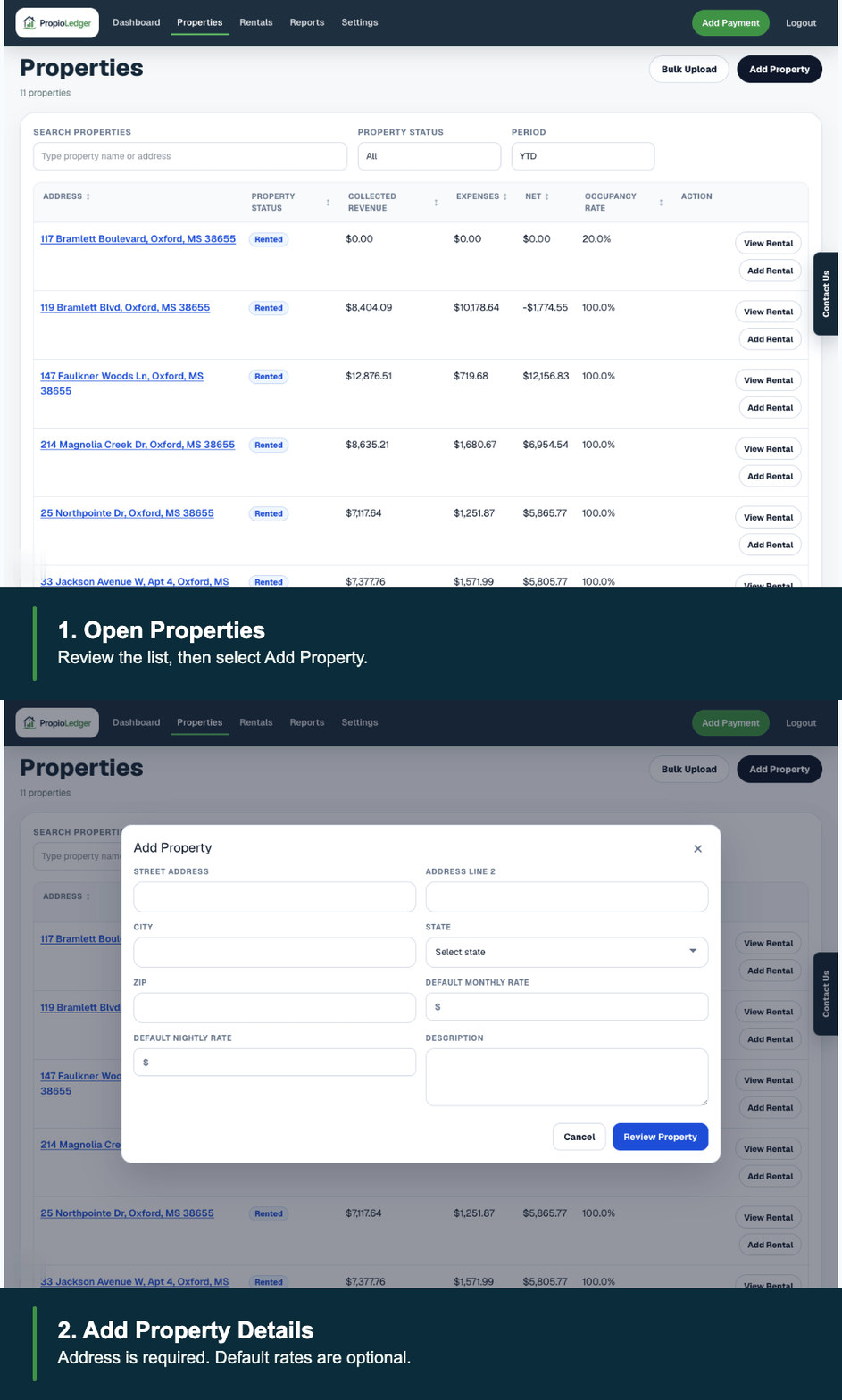
1. Open Properties
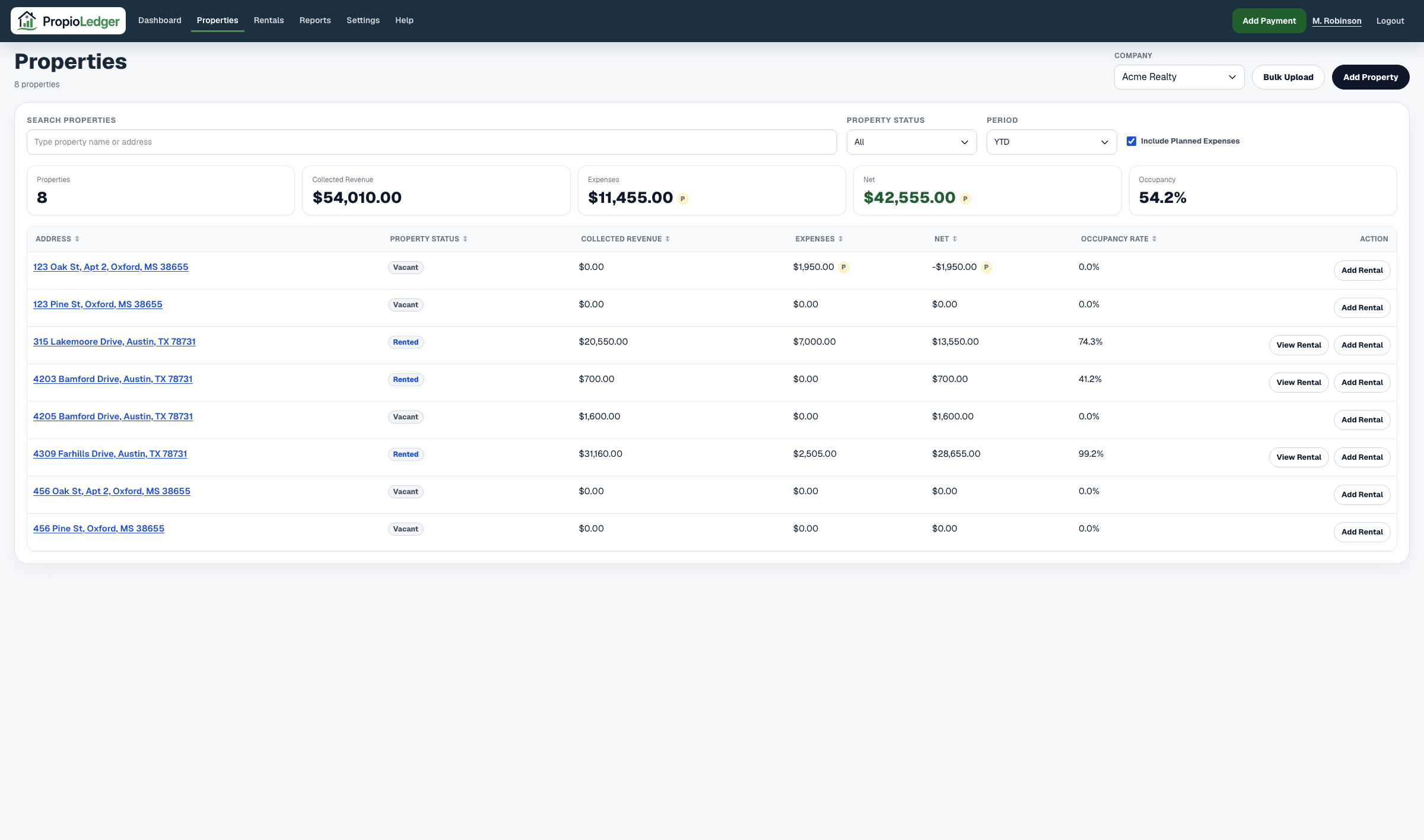
Use the main navigation to open Properties. The page shows each property address, current property status, collected revenue, expenses, net, occupancy, and available rental actions.
Use Search Properties to find a specific address, Property Status to filter by Vacant or Rented, and Period to review financial totals for the selected timeframe.
2. Select Add Property
Select Add Property to open the property form. The property is added to your portfolio account and becomes available for rentals, payments, expenses, notes, listing details, and reports.
If you need to add many properties at once, use Bulk Upload or Settings, then Import Center, instead of entering each row manually.
3. Enter Property Details
Street Address, City, and State are required. Address Line 2, ZIP, default monthly rate, default nightly rate, and description are optional but useful.
Default monthly and nightly rates are starting values for future rentals. They prefill the Add Rental rate field, but the user can still override the rental rate before saving the rental.
Changing a property default rate later does not update existing rentals. Existing rentals keep the rate saved on the rental agreement.
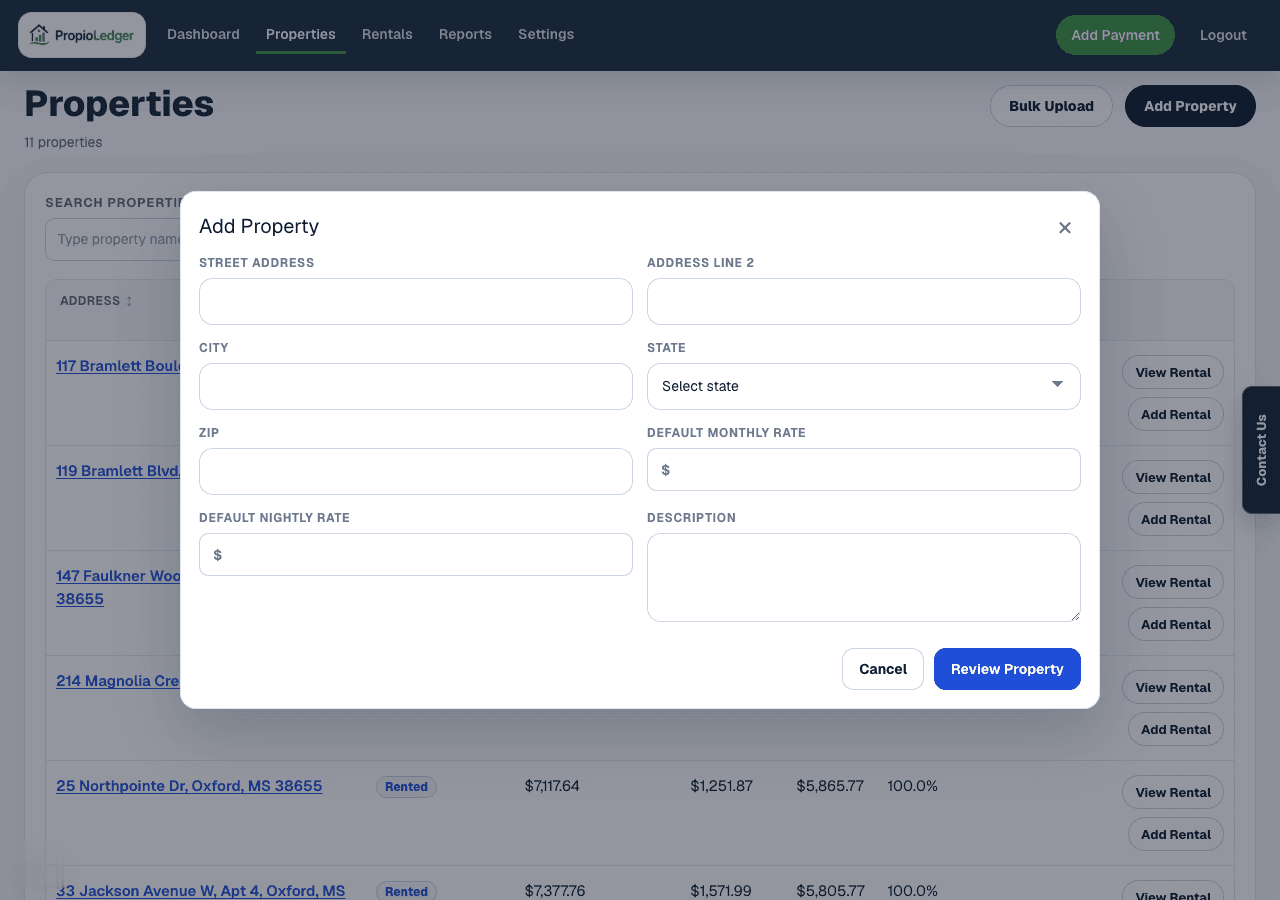
4. Review And Confirm
After entering property details, select Review Property. Review the summary before confirming so the address, rates, and description are correct.
Once the property is added, it can be used for rentals, payments, expenses, notes, listing profiles, maps, and property financials.
Property Status And Current Tenant
Property status is calculated automatically. A property shows Rented when it has an active rental whose date range includes today. A property shows Vacant when no active rental exists for today.
The property page also displays the current tenant from the active rental. If more than one active rental exists, PropioLedger uses the rental with the most recent start date.
Date-only end dates remain active through the local end day. For example, a rental ending on May 7 is active on May 7 and becomes inactive on May 8.
What To Add Next
After creating a property, the next step is usually to add a rental or booking for that property. You can also add property expenses, notes, a listing profile, or map context as your setup becomes more complete.
Property financials update automatically as rentals, payments, refunds, and expenses are added.
Common Questions
- Will changing the default rate update existing rentals?No. Existing rentals keep the rental rate that was saved when the rental was created. Updated default rates only affect future rentals.
- Why does my property show Vacant?A property is Vacant when no active rental exists for the current date.
- Can I edit property information later?Yes. Property information can be updated later by users with permission to edit company property data.
- Do I have to use imports?No. Add properties manually when that is easier. Use imports when you already have spreadsheet data available.
- What fields are required?Street Address, City, and State are required for manual property creation.
Last Updated
May 2026