
Getting Started
Quick Start Guide
The fastest way to get started: name your portfolio, add properties, add rentals, add payments and expenses, then verify your data.
Overview
This guide walks you through the fastest way to get started with PropioLedger.
For most landlords and rental property owners, the best setup path is: name your portfolio, add properties, add rentals, add payments and expenses, then verify your data on the Dashboard, Properties, and Rentals pages.
PropioLedger may call this your company profile, but you do not need a formal company. Use your legal business name, your own name, or a portfolio nickname that represents your properties.
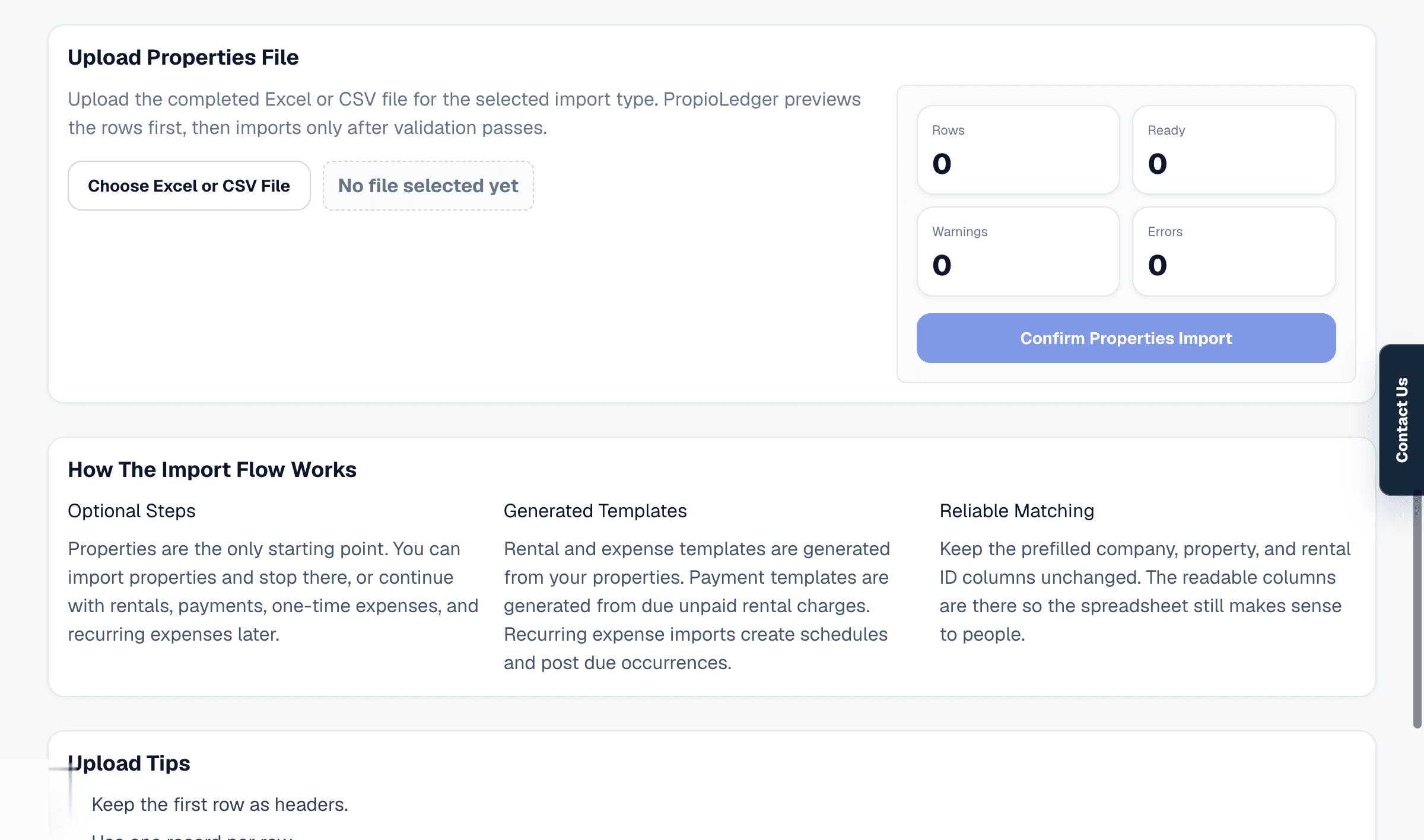
You can enter records manually as you go. If you already have spreadsheets of your properties, rentals, payments, or expenses, the Import Center gives you an easy way to bring that data in faster.
- Complete Company Profile / Portfolio Name.
- Add Properties (manual or import).
- Add Rentals (manual or import).
- Add Payments (manual or import).
- Add one-time and recurring expenses (manual or import).
- Verify data on Dashboard, Properties, and Rentals pages.
1. Complete Company Profile
Go to Settings, then Company Profile.
Review and update the name, contact email, contact phone, mailing address, and logo for your rental business or portfolio. Your company or portfolio information may appear on invoice emails and other customer-facing communications.
2. Add Properties
Add each property you manage so rentals, payments, expenses, notes, maps, listing profiles, and property financials have a place to connect.
You can add properties manually from Properties. If you already keep your property list in a spreadsheet, use Settings, then Import Center, to upload properties from Excel or CSV.
3. Add Rentals
After properties are in place, add the rentals or bookings connected to those properties.
You can create rentals manually from a property page, including dates, rates, renters, move-in charges, and review details. If your rental records already live in a spreadsheet, download the rental template from the Import Center after properties have been added.
4. Add Payments
Add payments already received so renter balances, collected revenue, dashboard metrics, and reports are accurate.
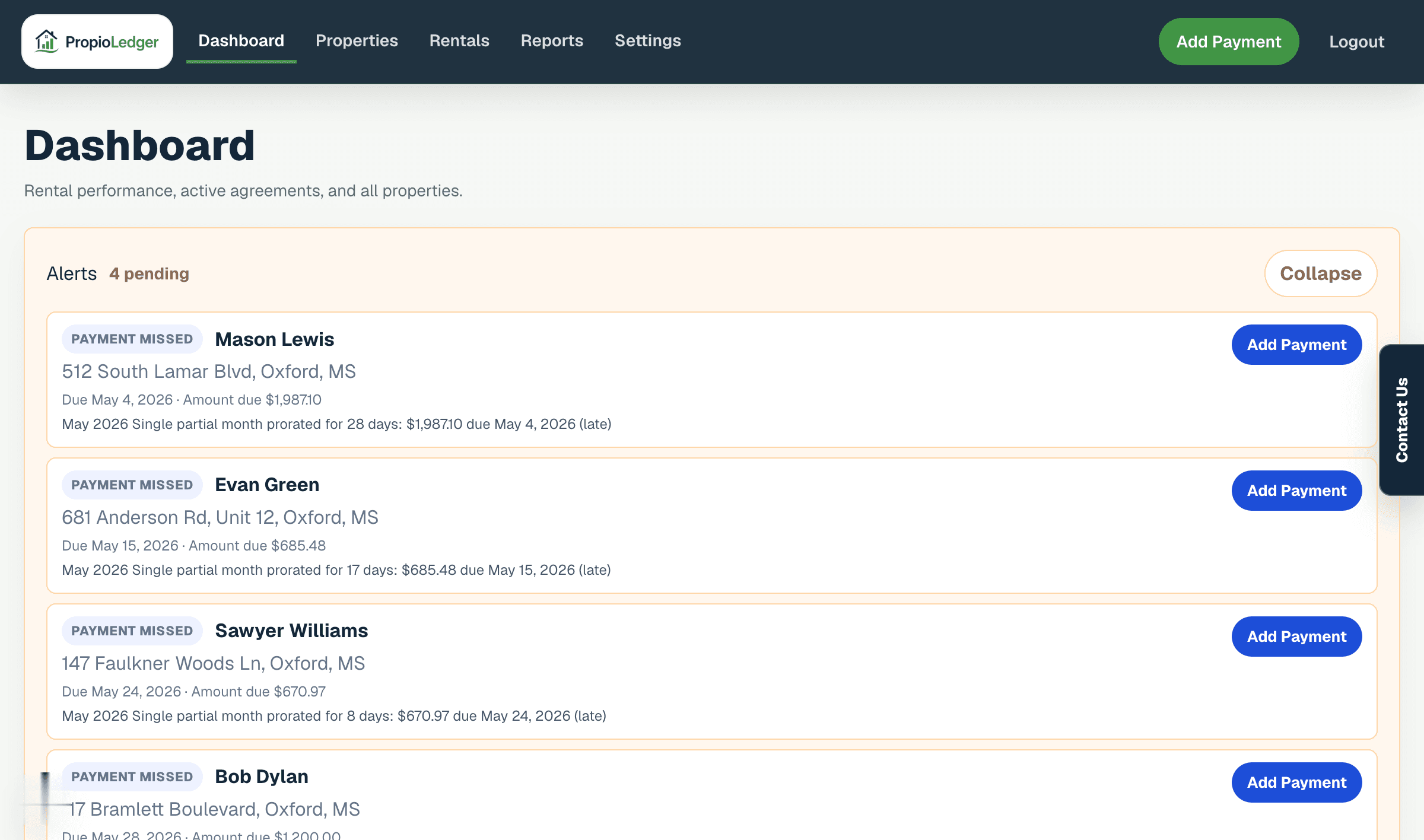
You can add payments manually from the Dashboard, the top navigation Add Payment button, or a rental detail page. If you have historical payments in a spreadsheet, use the payment import template after rentals have been added.
Payments reduce rental balances and flow into dashboard metrics and reports based on payment type and payment date.
5. Add One-Time And Recurring Expenses
Add property expenses so property cashflow, accounting reports, and net performance reflect the costs of operating each property.
You can add one-time expenses manually for posted costs such as repairs, utilities, insurance, taxes, HOA fees, cleaning, or maintenance. Use recurring expenses for costs that repeat on a schedule, or use the Import Center if you have expense history in spreadsheets.
6. Verify Data On Dashboard, Properties, And Rentals
After your starting data is in place, verify it in the places you will use most: Dashboard, Properties, and Rentals.
Properties with active rentals should display Rented. Properties without active rentals should display Vacant. Current occupancy is calculated automatically from rental dates.
If balances look incorrect, check rental dates, charges, payments, refunds, waivers, and opening balances. Most setup balance issues come from missing historical payments or an opening balance that does not match what was owed at onboarding.
Common Questions
- Should I add properties or rentals first?Always add properties first. Rentals must be connected to an existing property.
- Do I have to use imports?No. You can enter records manually. Imports are there when you already have spreadsheet data available.
- Should I add payments before rentals?No. Add properties and rentals first, then add payments.
- Do I need to add historical expenses?No, but doing so gives you more complete financial reporting.
- Can I start without importing history?Yes. You can begin with current rentals and enter new transactions moving forward.
- What if balances look incorrect?Review rental dates, charges, payments, refunds, waivers, and opening balances.
Recommended Next Steps
Last Updated
May 2026